Viewing CT, MRI, and X-ray files in DICOM format.
 | Warning. |
|---|
This website is not certified for medical use under applicable regulatory requirements.
It is intended only for research, education, or demonstration purposes and must not be used
for diagnosis or treatment. By continuing, you confirm that you understand these limitations!
1. Loading and saving data
2. Mouse and touch-screen controls
3. Viewing modes
4. Additional features
5. Transferring data from a PC to a tablet or phone
6. Privacy and personal data
7. Terms and abbreviations
1. Loading and saving data
1.1 Loading from a DVD
Click 'Load folder with files' and select the folder containing the data on the DVD.
Which folder should you choose? It is usually named DICOM or CONTENT, its name may begin
with 4–6 digits, or it may be the only folder on the disc. If you are unsure, select the
entire DVD. This will take only a little longer.

In most cases, loading data from a DVD takes 1–2 minutes,
but large datasets may take up to 4 minutes. To load the data faster next time,
you can copy it to your computer's internal drive or save it as a ZIP archive. You can do this
directly on the page after loading the data, using the 'File' menu

1.2 Downloading from a file server (URL).
Direct file download from a file server to web page is usually not supported.
You can open the download page in another window, download the file, and then click
'Download zip' -> Downloads on the viewing page.
1.3 Saving as a ZIP file.
If you loaded the data from a folder as separate files, you can save them together in one ZIP file from the menu
By default, personal data will be removed from the archive. Clear the checkbox if you want to keep it.
The default filename is {Study description + date}. You can change it before saving.
The ZIP file is saved in your Downloads folder.
⚠ Personal data is removed only from commonly used DICOM tags. Some manufacturers may store
or duplicate personal data in other locations, so complete removal cannot be guaranteed.
2. Mouse and touch-screen controls
When using a mouse, you can assign different functions to the left and right buttons.
The selected function is highlighted with

for the left button,
and

for the right button.
To assign a function, click it with the corresponding mouse button.
To avoid switching too often, you can combine mouse buttons with Shift/Ctrl.
By default, left mouse button + Shift works as a pointer/move, and right mouse button + Shift works as a measurement,
but you can override this in

→ View Options.
On tablets and phones, only one active function can be selected.
In the mobile version, you can use two fingers to both zoom and move the image.
2.1 Pointer

In this mode, you can:
- View the density or brightness value at a selected point. For CT, this is shown in HU (Hounsfield units).
For MRI, the meaning varies depending on the scan sequence and protocol.
- Move a zoomed image within the viewing window
- In MPR mode, select a point to position the reconstructed plane, or click the MPR image to find the corresponding original slice
2.2 Brightness/Contrast

Horizontal movement with the active mouse button changes contrast; vertical movement changes brightness.
You can also
'Select area', to see more details in that selected area.
To restore initial settings, click
 Default
Select a measurement mode. The results are displayed in the upper left corner - length (L), width (W), height (H), area (S), as well as the minimum, maximum, and average values (M)
along a line or within an area.
2.4 Mouse Wheel
Allows you to scroll through layers, just like the right slider.
When combined with the Ctrl key, it changes the zoom.
3. Viewing modes
3.1 One series

Select a series from the list on the right or at the bottom. If the preview contains

,
the series contains several phases. When you select such a series, a small panel will appear
at the lower-right corner of the image,
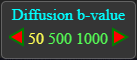
showing the parameter used to separate the phases and the available values.
You can choose a phase by clicking it or by using the left and right arrow keys on a PC keyboard.
3.2 Two series

When switching to two-series mode, you can immediately choose a series for the right-hand window.
The left window has a blue border, and the right window has a green border. To load another series,
first click the window you want to use, then select the series. The active window has a brighter border.
If the selected series have the same orientation, position, and number of slices,
synchronized viewing is enabled automatically.

To view the series independently, clear the synchronization checkbox.
To compare two phases of the same series in sync, load that series into both windows and select a different phase in each one.
3.3 Multiplanar Reconstruction (MPR): front and side views

CT or MRI data may already include vertical views. If not, the viewer can create vertical views
from the available horizontal slices. At least 30 horizontal slices are required, but for a good-quality
reconstruction, 200 or more slices are recommended, with a slice thickness of 2 mm or less.
In
Pointer mode
you can click the original horizontal slice to choose the position of the vertical reconstruction plane.
You can also click the MPR image to select the corresponding original slice.
3.4 Data
Displays the full list of DICOM data fields (tags) for the current slice. Each row contains the hexadecimal
group number, hexadecimal element number, field name, and value. Some specialized or rarely used fields
may not be included in the viewer's reference list; in that case, *** is shown instead of a name.
4. Additional features
Click

to see brief information about the current slice, series, and the complete study.
(Full information is available in the 'Data' viewing mode.)
DICOM images can contain a much wider range of values than a monitor can display at once, so not every detail
can be shown using brightness levels alone. For example, to help distinguish metal from bone on a CT image,
you can enable additional colour differentiation.
Click
→

to open the pseudo-colour panel.
For CT, you can choose from preset options. For MRI, you can select the range of values that should be highlighted with colour.
5. Transferring data from a PC to a tablet or phone
A USB flash drive can be connected directly to a phone or tablet if the connectors are compatible,
or through an adapter. For data stored on a DVD, first copy the data to a PC, or load it into the viewer
and save it as a ZIP file. You can then transfer the ZIP file using a flash drive, cable, or Bluetooth.
6. Privacy and personal data
All data is processed locally in your browser. No data is sent to the server.
Cookies are not used. Viewing preferences may be stored locally in your browser, without being sent
to the server, but personal data is not stored even locally.
If your browser asks you to confirm 'Upload' when selecting files, this only means loading the files
into the page in your browser. The files are not uploaded to a server.
7. Terms and abbreviations
If this is your first time working with DICOM files, the main terms are explained below.
7.1 Image orientation
Orange orientation letters may appear at the centre of each side of the image.
L - Left side
R - Right side
A – Anterior: Front of the body
P – Posterior: Back of the body
S – Superior: Toward the head or upper part
I – Inferior: Toward the feet or lower part
7.2 Common abbreviations in series names
| Anatomical planes |
|---|
| AX/AXIAL/TRA | Axial (cross-sectional) plane. Slices usually run from top to bottom. |
|---|
| COR | Coronal (front-facing) plane. Slices usually run from front to back. |
|---|
| SAG | Sagittal (side-view) plane. Slices usually run from left to right. |
|---|
| OBL | Oblique plane, positioned at an angle to the standard anatomical planes. |
|---|
| 🧲 Common MRI sequences: |
|---|
| T1(T1W) | T1-weighted image. Fluid usually appears dark, while fat appears bright. |
|---|
| T2(T2W) | T2-weighted image. Fluid usually appears bright; fat may also appear bright. |
|---|
| PD | Proton-density image. Often provides detailed views of joints and surrounding tissues. |
|---|
| FLAIR | A T2-based sequence that suppresses the signal from free fluid. Commonly used when examining the brain. |
|---|
| STIR | A sequence that suppresses the signal from fat, making fluid-related changes easier to see. |
|---|
| DWI | Diffusion-weighted imaging. Shows the movement of water molecules and is commonly used in urgent brain imaging. |
|---|
| ADC | Apparent diffusion coefficient map. Usually interpreted together with DWI to help distinguish true findings from image artefacts. |
|---|
| SWI/T2 | * Images sensitive to local magnetic-field differences. They may help show blood products, calcium, or iron. |
|---|
| 💉 Contrast enhancement and angiography |
|---|
| PRE(NATIVE) | Before contrast material is given (non-contrast or native series). |
|---|
| POST(CE) | After contrast material is given (contrast-enhanced series). |
|---|
| ART | Arterial phase, when contrast is mainly visible in the arteries. |
|---|
| VEN(PORTAL) | Venous or portal phase, when contrast is mainly visible in the veins or portal circulation. |
|---|
| DEL/DLY | Delayed phase, acquired some time after contrast administration. |
|---|
| MRA/CTA | MR angiography or CT angiography, used to display blood vessels. |
|---|
| ⚙️ Technical options and viewing methods |
|---|
| FS/FAT SAT | Fat-signal suppression (Fat Saturation). |
|---|
| FSE/TSE | Fast or turbo spin echo, a commonly used MRI acquisition method. |
|---|
| MPR | Multiplanar reconstruction. |
|---|
| MIP | Maximum-intensity projection. Often used to display blood vessels or lung structures. |
|---|
| MinIP | Minimum-intensity projection. Often used to display airways or low-density structures. |
|---|
| 3D/2D | Two-dimensional or three-dimensional image acquisition or reconstruction. |
|---|
| RT/LT | Right and left sides, often used for paired organs or joints. |
|---|
| 🩺 CT-specific terms |
|---|
| NCCT | Non-contrast CT examination. |
|---|
| HRCT | High-resolution CT, commonly used for detailed imaging of the lungs or temporal bones. |
|---|
| LDCT | Low-dose CT, commonly used for lung screening. |
|---|
💡 Depending on the scanner manufacturer (such as Siemens, GE, or Philips) and local settings, these abbreviations
may be combined, shortened, or replaced with different names.


